

Practical guide
Calendar and scheduling
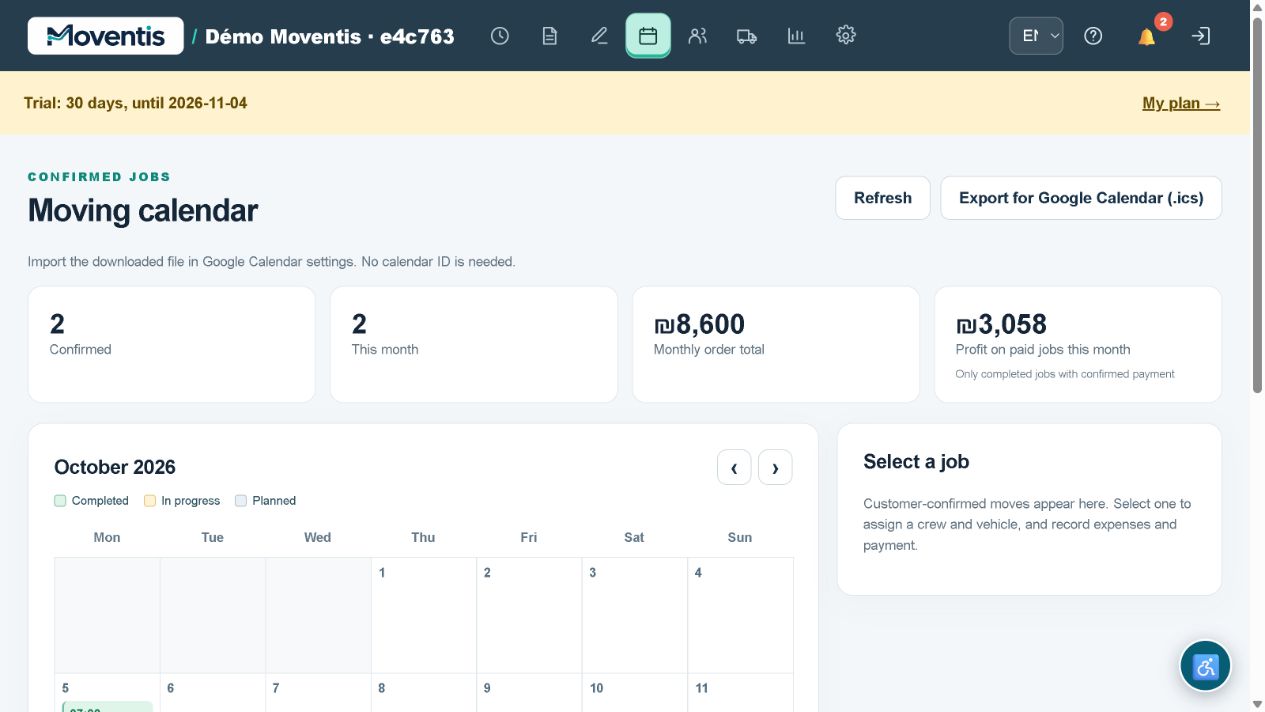
Schedule arrival time, vehicle and crew. Status colours distinguish jobs, and notification links open the relevant job.
Daily work: practical scenarios
A customer reschedules a move
The job is agreed and a driver assigned, but the customer asks for a new date. Everyone needs the updated schedule.
- Open the job
- change the date and time
- request confirmation again
- after confirmation check the calendar and assignments.
The new date goes through approval. If Google Calendar is connected, check the sync result; use the system calendar if the connection fails.
Illustrative workflows, not real customer testimonials.How to use it
- Open the relevant workspace section.
- Enter the details and review them before saving.
- Save your changes and check the result in the job or report.
Workflow example
Open a confirmed job, assign a time and review the team’s schedule.
Important details
The demo uses a separate local database. Do not enter real customer personal data. External services require separate configuration.
Open demo ↗